Revolutionary
Like having your own personal coach that gives you immediate feedback on every shot.


The OB Cues DigiCue® BLUE constantly monitors your stroke for inconsistencies and gives you immediate feedback by silently vibrating when it measures a flaw in your stroke. Additionally, it wirelessly sends statistics of each shot to the DigiCue app on your smartphone or mobile device.
Previously sold by OB Cues, the original and official DigiCue BLUE is now sold and distributed here!
DigiCue App Tutorial
DigiCue Blue Troubleshooting
5/22/2026: Version 1.1
- Better cue impact detection that reduces the likelyhood of false triggers.
- Improved cue straightness and steering detection for hard or fast shots.
- Always vibrates on successful shots.
iOS: Use the DigiDFU app. A video tutorial can be found here.
Android: Use the nRF Connect app. A video tutorial can be found here.
You will need to download the firmware package from here to your mobile device.
Updates are only available for DigiCue BLUE units purchased in 2024 or later, with a blue PCB silkscreen.

When most people thing of training aids, they think they are only for beginners. I really do believe that the DigiCue BLUE can benefit any player of any skill level.
Jayson Shaw
World Champion Pool Player
Straight Pool Record Holder
Monitor your shots from your wrist!



Revolutionary
Like having your own personal coach that gives you immediate feedback on every shot.
Lightweight
The electronics, rubber housing and battery altogether weigh no more than 0.8 ounces.
Effective
Amplifies awareness of the flaws in your stroke fundementals, leading to permanent corrections.
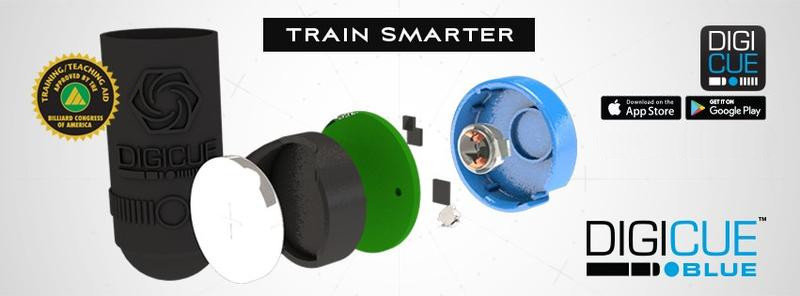
The DigiCue BLUE is a small electronic coach with wireless technology that fits inside of a custom rubber housing and attaches to the butt end of any pool, snooker or billiard cue. Simply slide the DigiCue BLUE onto the butt end of your cue, push the power button, and then play the game of your choice.
The DigiCue BLUE constantly monitors your stroke for inconsistencies and gives you immediate feedback by silently vibrating when it measures a flaw in your stroke. Additionally, it wirelessly sends statistics of each shot to the DigiCue app on your smartphone or mobile device.
Yes. The DigiCue BLUE will only trigger if the tip of your cue impacts a billiards ball. It will not trigger on warm-up strokes, chalking the tip, moving a ball with your cue shaft or impacts with your hand.
Yes. The DigiCue BLUE comes pre-programmed with Beginner, Intermediate, and Advanced modes that does not require a mobile device or wireless connectivity. The DigiCue BLUE will vibrate when a fault is detected, but you will not be able to view details of the shot.
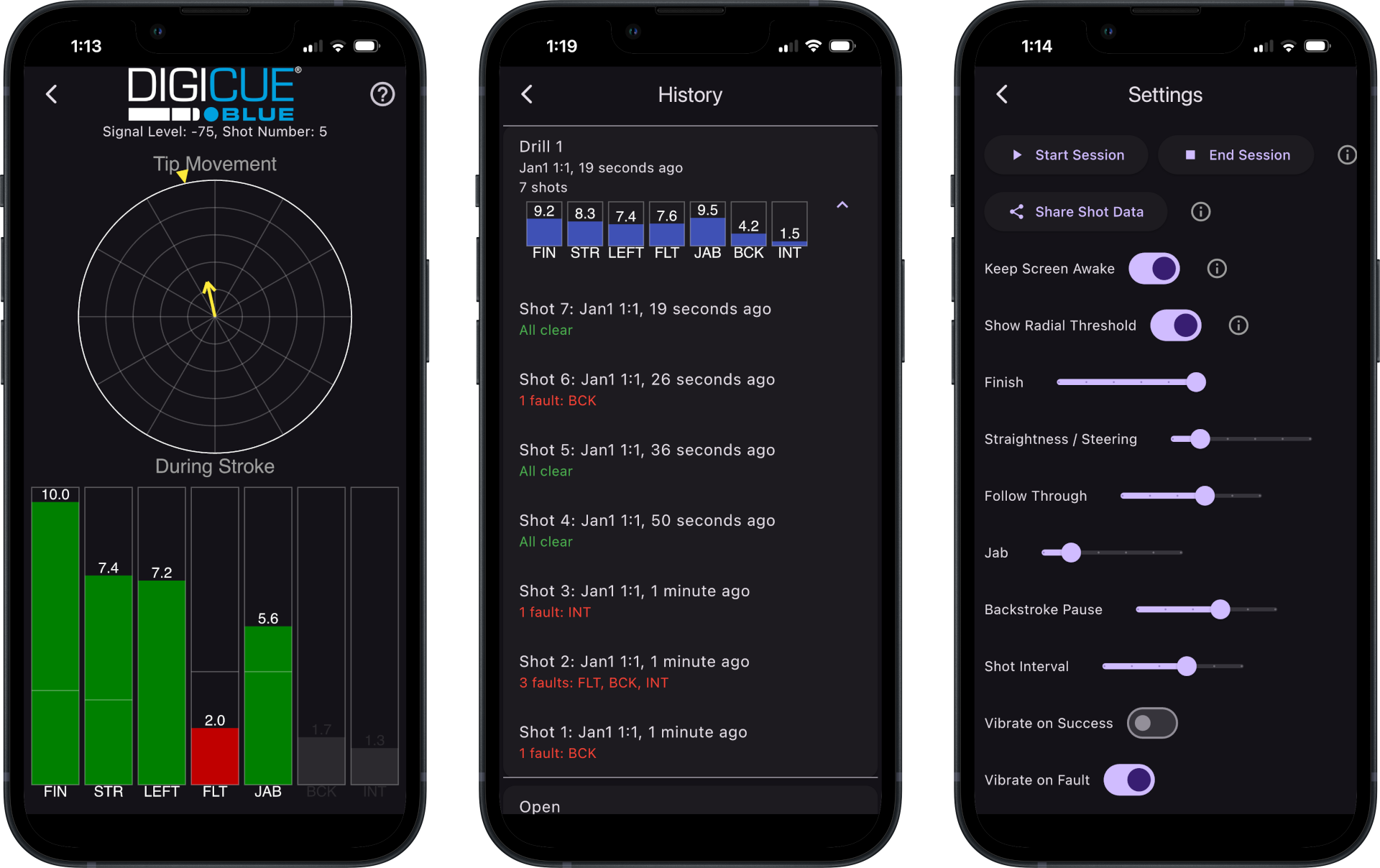
The DigiCue BLUE provides both tactile and visual feedback to help you condition your stroke, track improvements over time, and analyze characteristics and flaws in your execution.
Each box (now tube) contains one electronic DigiCue BLUE (battery included), one small rubber housing, one large rubber housing and a quickstart guide. The small rubber housing should fit all snooker cues (with or without a chamfer) and very small diameter pool cues. The large rubber housing should fit all other cues.
No. The rubber housing(s) are made of soft silicone rubber and will not damage or create marks on your cue.
No. It takes much more force to permanently deform the rubber housing(s) than is required to remove them from the butt end of a cue, even when snugly fit. A video of a vice-grip strength test can be viewed HERE.
You will need to install the DigiCue BLUE into a rubber housing and download the DigiCue app. There is a video explaining how to install the DigiCue BLUE into the rubber housing on our YouTube channel HERE
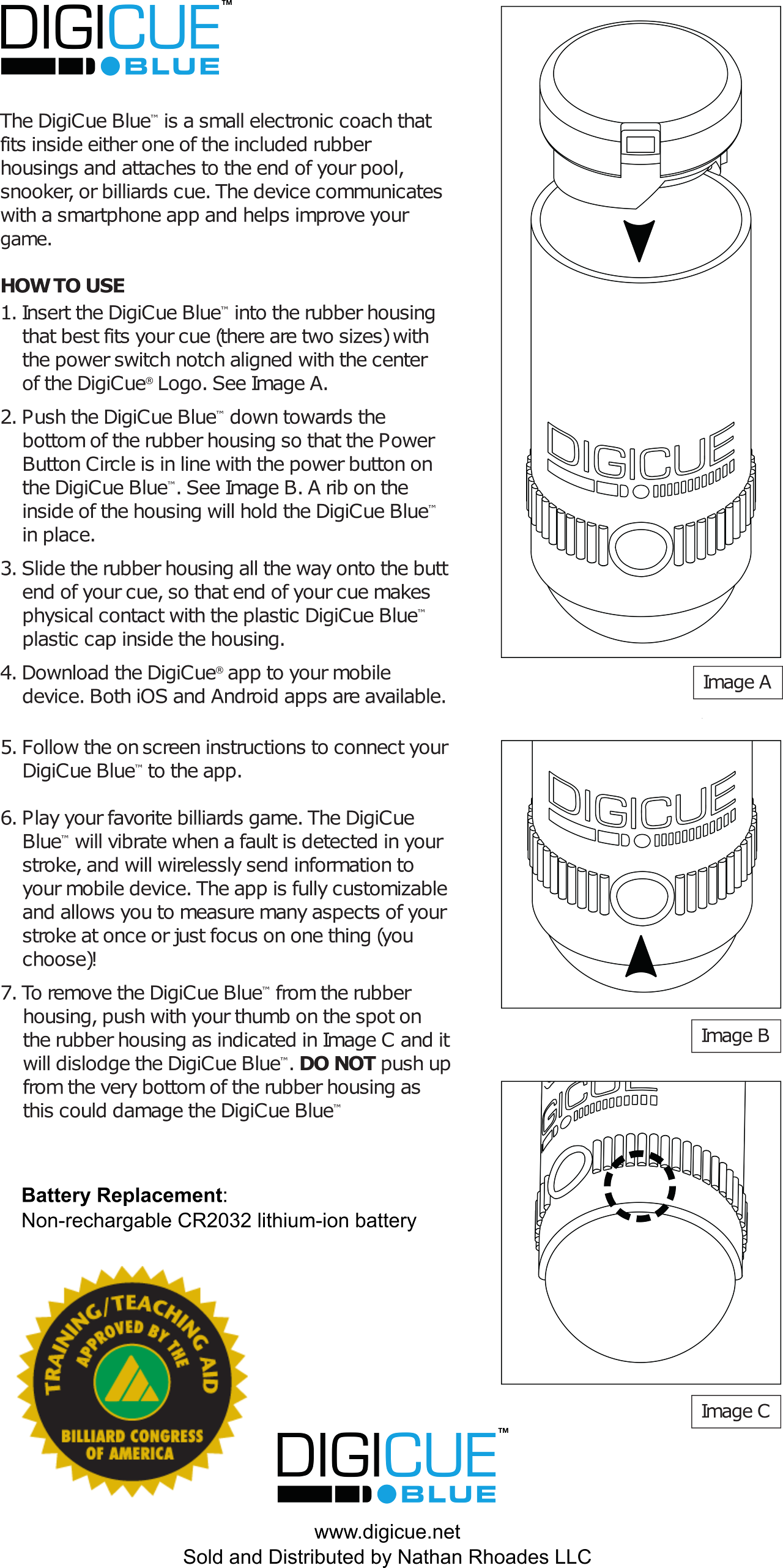
1) First, choose one of the two rubber housings that best fits the butt of your cue.
2) With the battery facing downwards, insert the DigiCue BLUE module into the rubber housing so that the power button notch is aligned with the center of the DigiCue logo.
3) Continue pressing the DigiCue BLUE towards the bottom of the housing until it securely snaps into place.
4) Download the DigiCue app to your mobile device. Both iOS and Android apps are available.
5) Follow the on-screen instructions to connect your DigiCue BLUE to the app.
The DigiCue app is free of charge.
Slide the rubber housing all the way onto the butt end of your cue so that your cue is in direct contact with the plastic body of the DigiCue BLUE.
No. DigiCue BLUE measures flaws relative to the cue stick line, not the shot line. Therefore, if you apply backhand-English to pivot the cue at an angle to the shot path, but stroke exactly in the direction that the cue stick is pointing, then DigiCue BLUE will not register this as a fault. This is important because many shots have spin applied to them. However, if you swoop or steer the cue to create English, then this is a “Straightness” and “Tip Steering” fault.
Press the Power Button Circle once (1) to turn on the DigiCue BLUE. The DigiCue BLUE will vibrate a number of times, indicating which of the four (4) modes it is currently set to:
1) Vibration: Beginner Mode
2) Vibrations: Intermediate Mode
3) Vibrations: Advanced Mode
4) Vibrations: Custom Mode
At any time, pressing the Power Button Circle once (1) will cause DigiCue BLUE to report which mode it is set to.
At any time, press the Power Button Circle three (3) times to cycle to the next mode. The DigiCue BLUE will remember which mode it was in after it has turned off, even if the battery is removed.
Each of these modes are pre-programmed with a certain combination of settings that best represents the sensitivity levels of flaws expected from a Beginner, Intermediate, and Advanced player. A mobile device is not required to set or use these modes.
All settings are fully customizable using the DigiCue app. Choose the flaw sensitivity levels of each setting and sync with your DigiCue BLUE. Once successfully synched, the DigiCue BLUE will vibrate four (4) times to indicate that the settings are customized. You can exit Custom Mode by pressing the Power Button Circle three (3) times, in which case it will enter Beginner Mode.
The DigiCue BLUE will automatically turn off five (5) minutes after the execution of your last shot.
The battery will last for approximately 30,000 shots, minus the normal self-discharge (lifetime) of a CR2032 battery.
Remove the DigiCue Blue from the housing and squeeze the retention clip on the battery holder to release the battery. Insert, positive-side-up, a common non-rechargeable CR2032 lithium ion battery. Return the DigiCue Blue to the rubber housing of your choice.
Place your thumb just below the letter E in the “DigiCue” text printed on the rubber housing and push with your thumb. DO NOT attempt to remove the DigiCue BLUE by pushing up from the very bottom of the rubber housing as this could damage the DigiCue BLUE. For a video showing exactly how to remove the DigiCue BLUE, see HERE.
Yes. OB Cues has a video channel demonstrating the DigiCue BLUE on YouTube HERE.
The DigiCue BLUE, rubber housing and battery altogether weigh a maximum of 0.8 ounces.
The small housing inner diameter is 1.1″. The large housing inner diameter is 1.22″. Both housings have a mating contact length of 1.65″ when the DigiCue BLUE is inserted.
No. The “Tip Steering” measurement ignores up/down motions of the cue. More sensitive Tip Steering settings require the motion to be closer to the vertical plane in order to prevent a fault. However, the “Straightness” measurement detects movement in all radial directions, and requires a perfect laser-beam like piston stroke in order to achieve high scores. A pendulum stroke may cause a Straightness fault.
Yes. All faults can be changed and turned on and off via the DigiCue app.
Yes. Vibrations on success and vibrations on a fault can both be turned on and off independently via the DigiCue app. All vibrations can be disabled so that the DigiCue BLUE behaves like a silent data logger.
The app works with both Android and iOS.
Apple smart watches are supported and an app is available for it in the Apple store.
The app will drain an average of 4% battery life per hour, if the app is allowed to enter sleep mode. The battery drain of an illuminated screen is far greater than the power draw of the phone’s wireless module.
Yes, the DigiCue BLUE will most likely be able to detect shots in which the cue ball freely rolls about one or more ball widths. The sensitivity will be decreased if the DigiCue BLUE plastic cap inside the rubber housing is not in direct contact with the butt of your cue.
It may take between 3 to 5 seconds for data to be recorded under normal conditions. Normal conditions mean that there is a good line-of-sight from the DigiCue BLUE to your smart phone or mobile device, that large objects are not blocking the line-of-sight (pool table or other objects), and that the mobile device is not resting on any large metal surfaces that block radio waves. If there is significant interference, it may take up to 10 seconds.
Wait at least 3 to 5 seconds between taking each shot in order to allow data to be sent to your smart phone. If you shoot faster than 3 seconds, then some shots may be missed. This is still OK however, if your goal is to look at a long term statistical average of your performance.
No. The DigiCue BLUE can be used in any orientation. However, some very elevated shots (greater than 45 degrees) may not register correctly.
No calibration is ever required.
No. Resonances and vibrations in the cue are digitally filtered out before the signal reaches the main algorithm. DigiCue BLUE will behave the same way on any cue, independent of the manufacturer.
Very rarely. The DigiCue BLUE algorithm contains a discriminator that can tell the difference between a true cue ball strike and other perturbations.
No. The DigiCue BLUE is now exclusively sold and distributed by Nathan Rhoades LLC through Amazon. Wholesale is not available at this time.
Please email nataddrho@digicue.net. Live tech support is not available at this time.
Yes. A computer program for the DigiCue BLUE has been developed which can run on most common operating systems including Windows, Linux and MAC OSX. The purchase of a $20 dongle is required for hardware compatibility. Find more information and download the program HERE.
Data is exported from the DigiCue App in comma-delimited ASCII format. All scores and thresholds are normalized decimal fractions between 0 and 1.
epoch: Timestamp, milliseconds since Jan 1, 1970
dcfin: Finish Score
dcstr: Straightness Score
dcste: Steering Score
dcflt: Follow-through Score
dcjab: Jab Score
dcbck: Backstroke-pause Score
dcint: Shot Interval Score
dcang: Angle of tip movement in degrees (0 degrees is 12:00, 90 degrees in 3:00, etc.)
dcths: Threshold of straightness setting. Compare to Straightness score.
tag: Session name / start of session
tagend: End of session