
Download the DigiBallCam app from the Apple store. When you open the app you will see five buttons. Click on the first button that says "No Signal..."
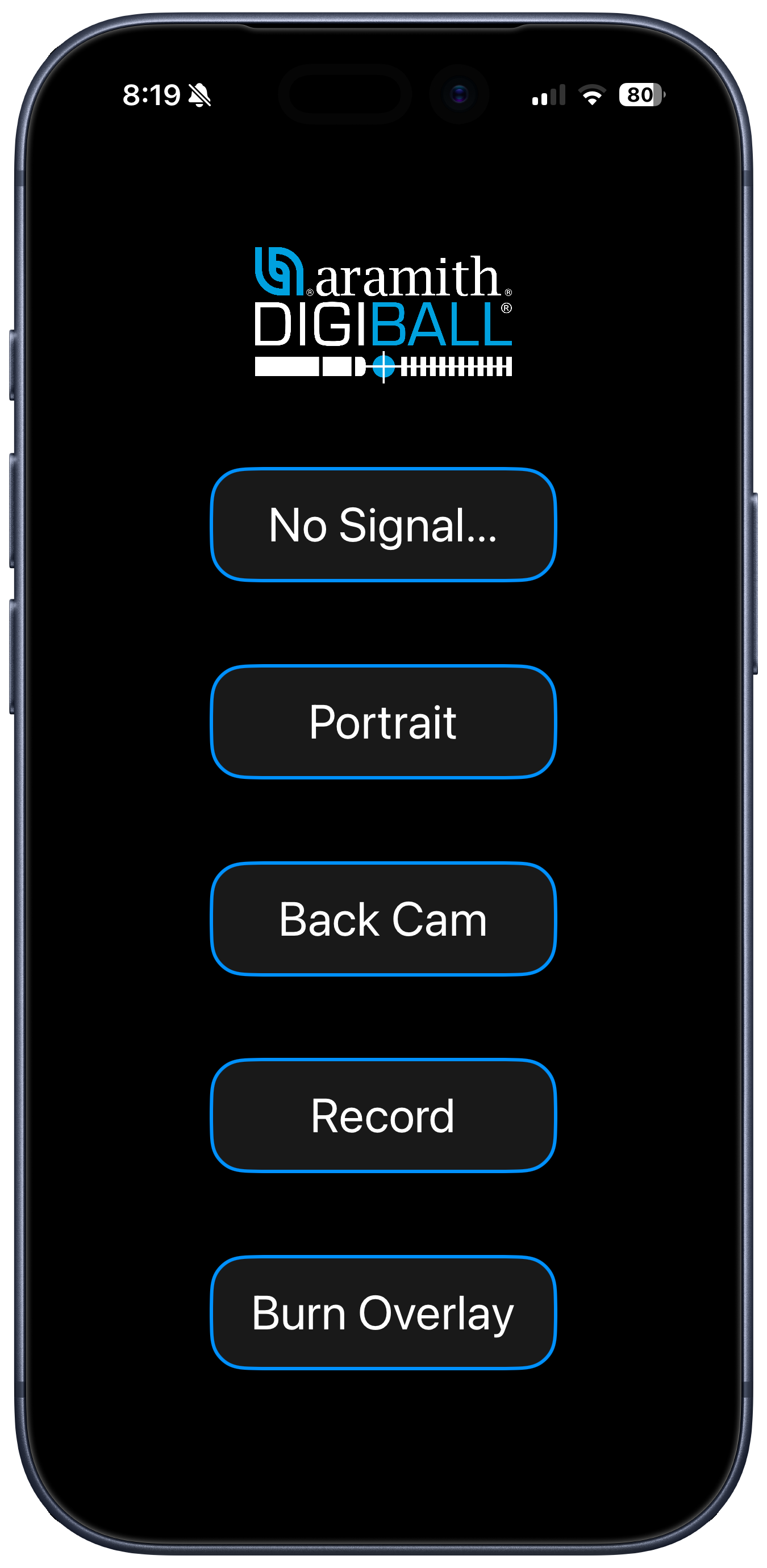
A list of discovered DigiBalls will appear in a list. The signal strength of each DigiBall will be displayed as an RSSI value in dBm. The number will become closer to zero as the signal strength increases.
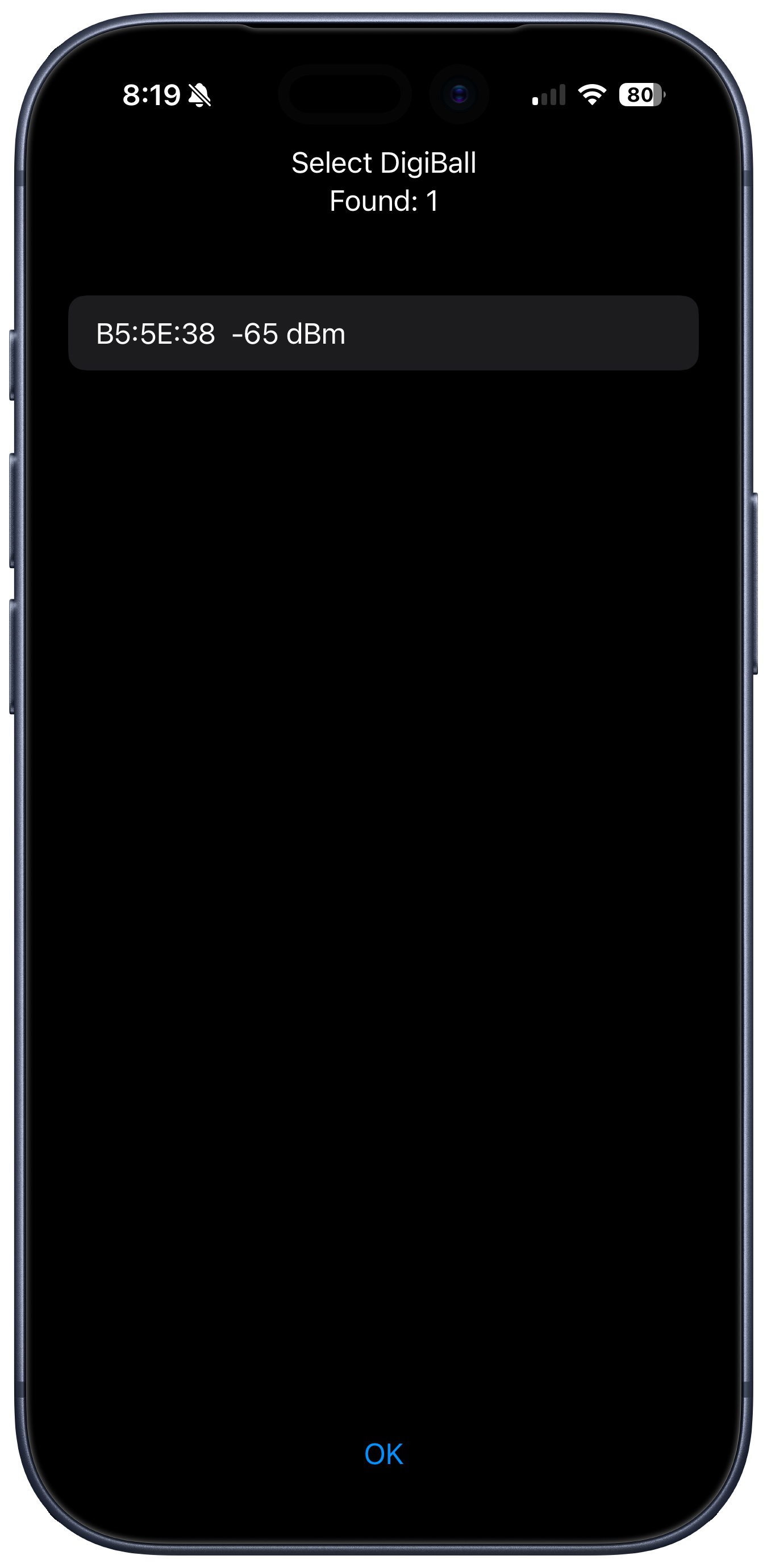
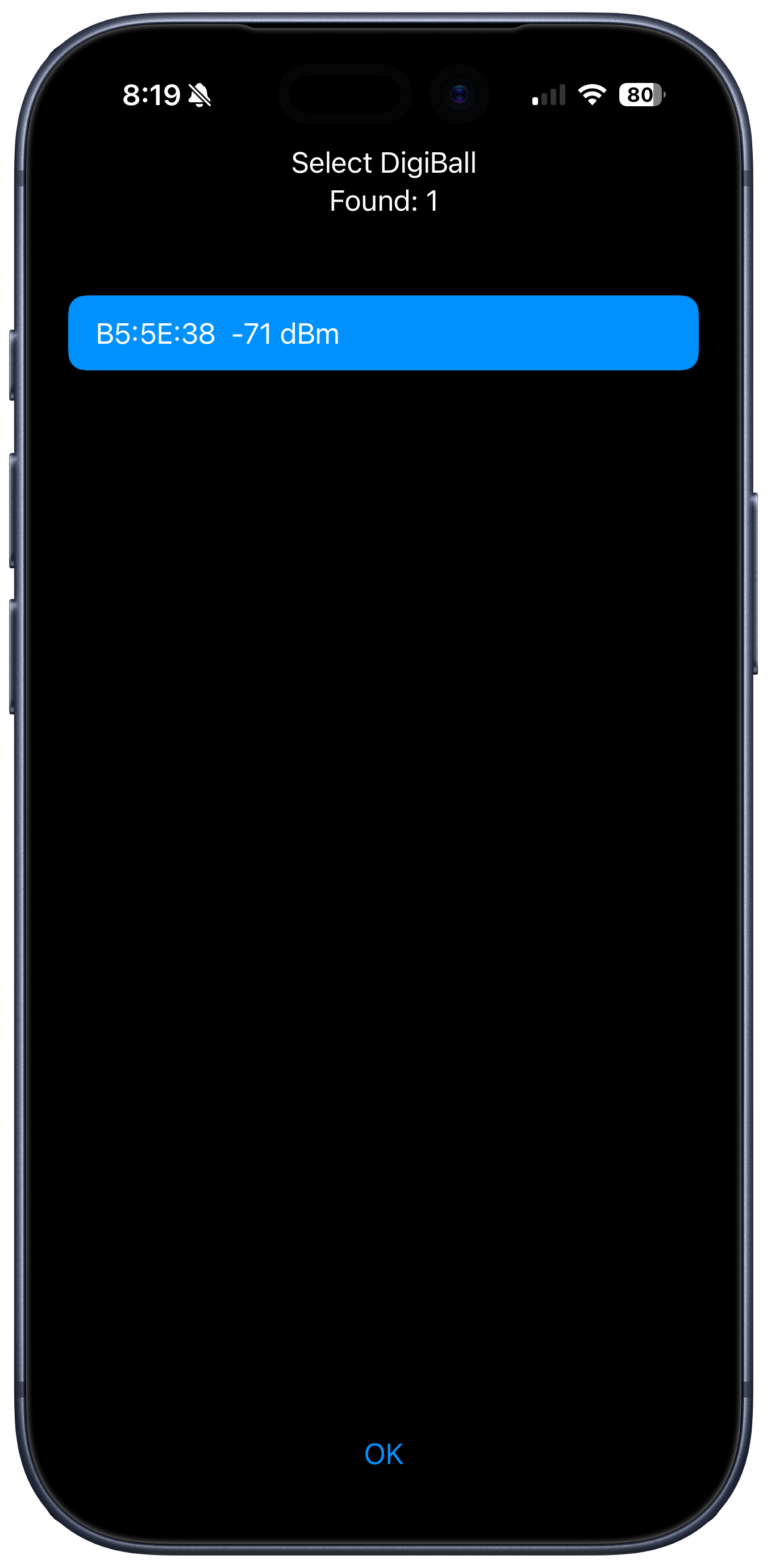
Tap on an identified DigiBall to select it. Then press OK at the bottom of the screen.
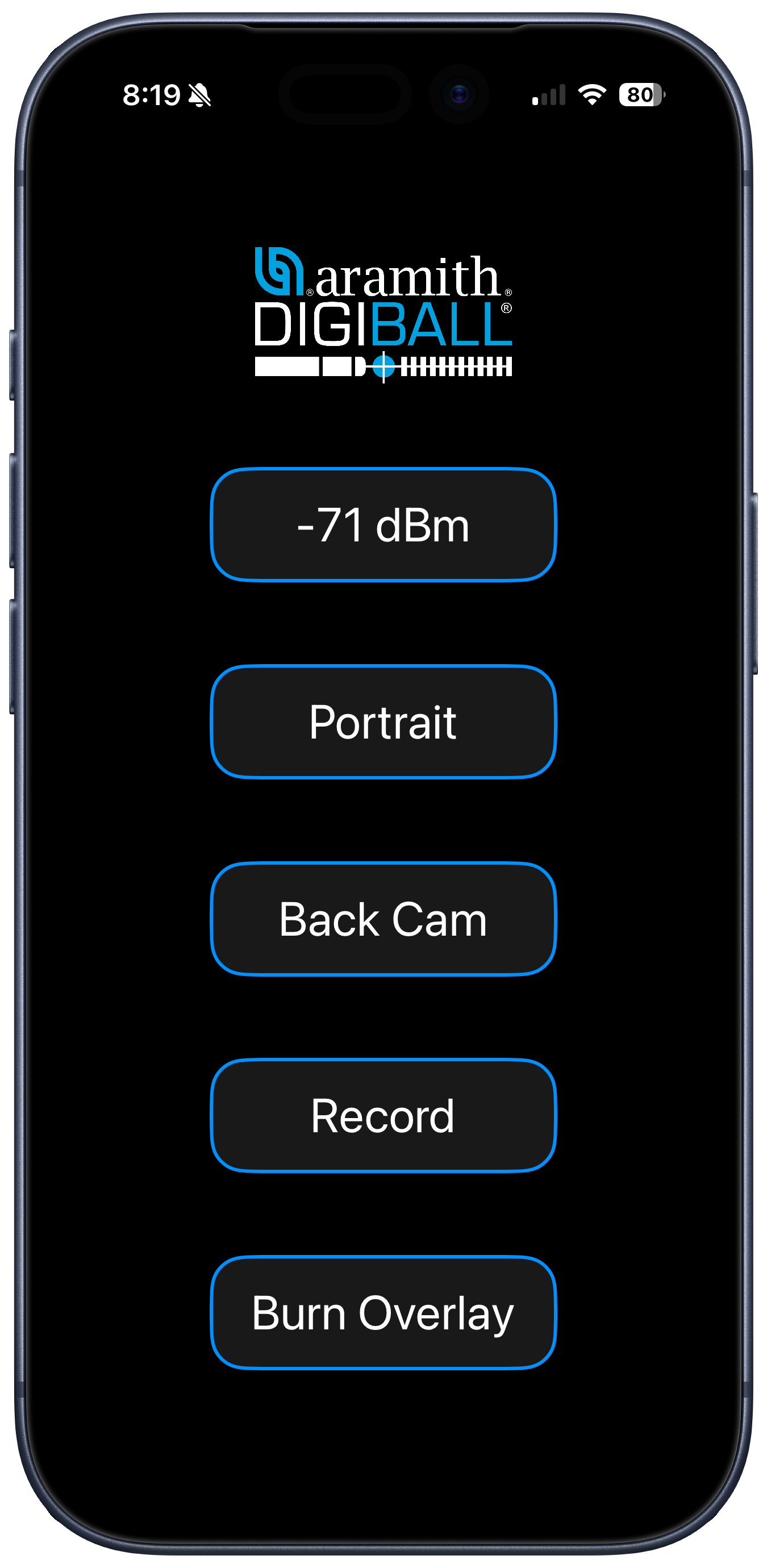
The RSSI value of the selected DigiBall will now be displayed inside the first button. The next two buttons allow you to adjust the camera orientation (Portrait or Landscape) and which camera to use (Backwards-Facing Camera or Frontwards-Facing Camera). Press the Record button when you are ready to start recording a video.
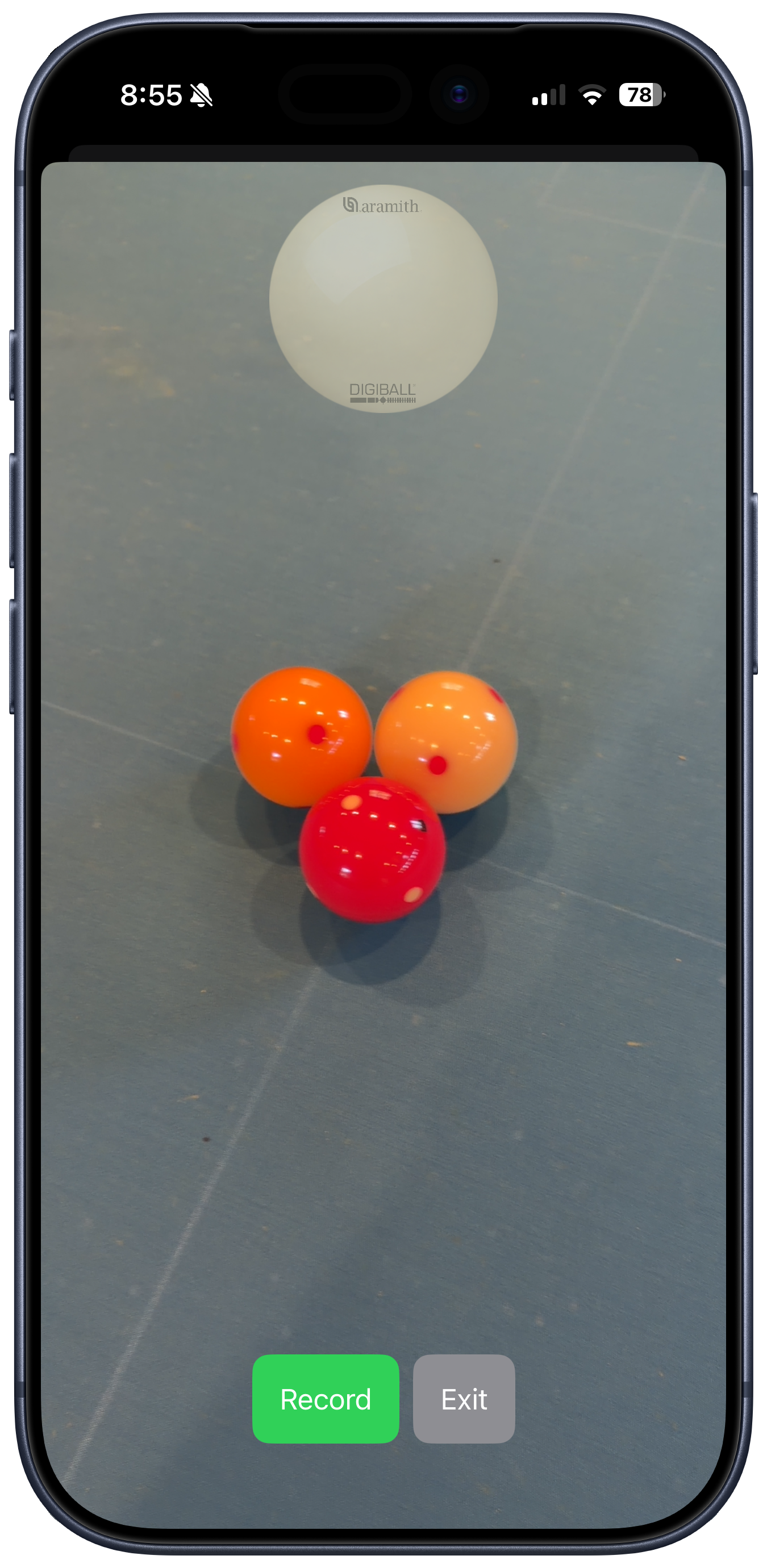
Pressing the Record button will open a live view of the camera. When in Portrait mode, the DigiBall overlay will be burned into the final video in the location of the transparent blank ball at the top of the video. Press Record to start. The video will be saved into your Photo Gallery. The video may be as long as you want with as many shots as you want.
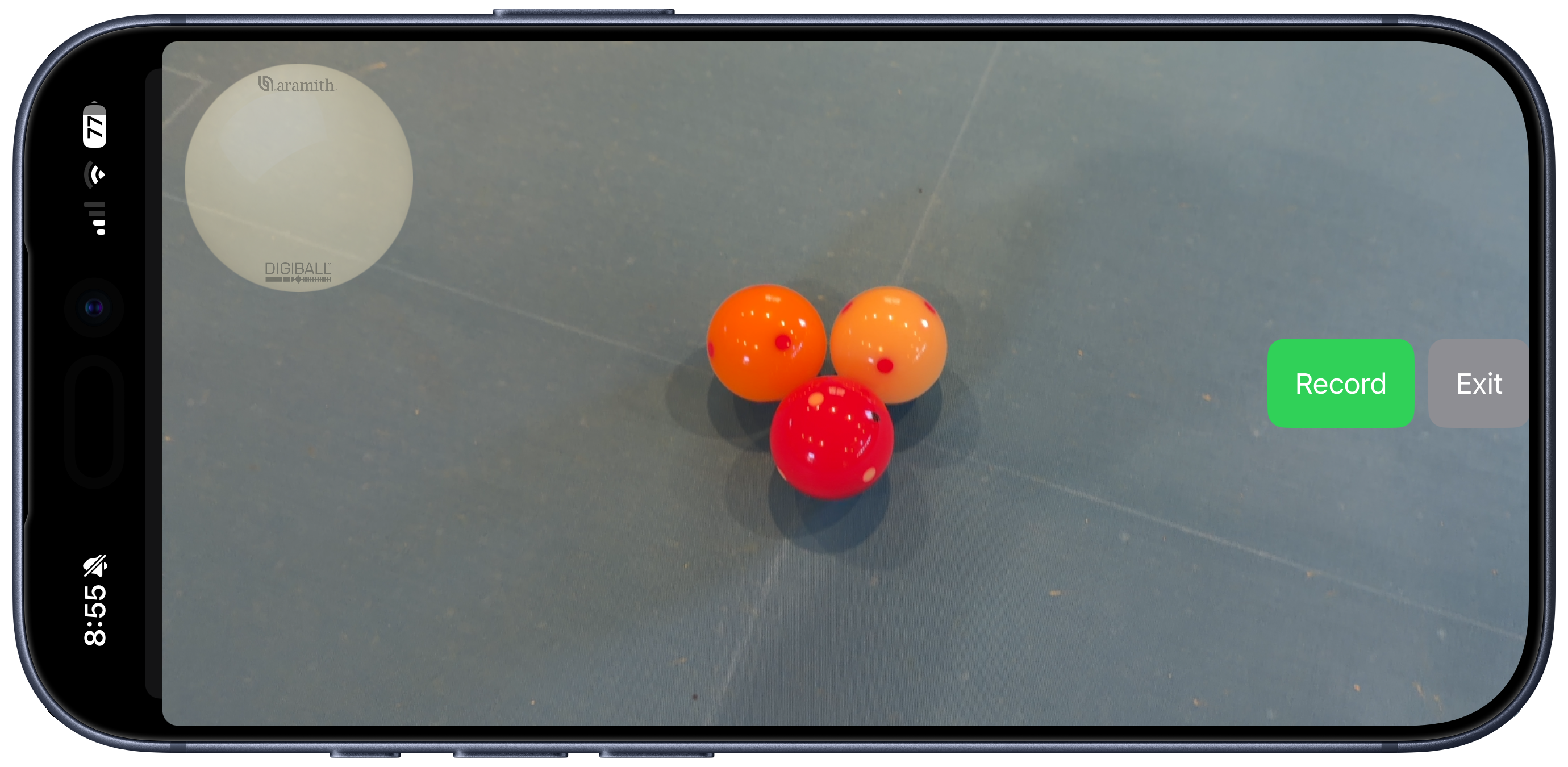
In Landscape Mode, the DigiBall overlay will be burned into the upper left corner of the screen in the location of the transparent blank ball.
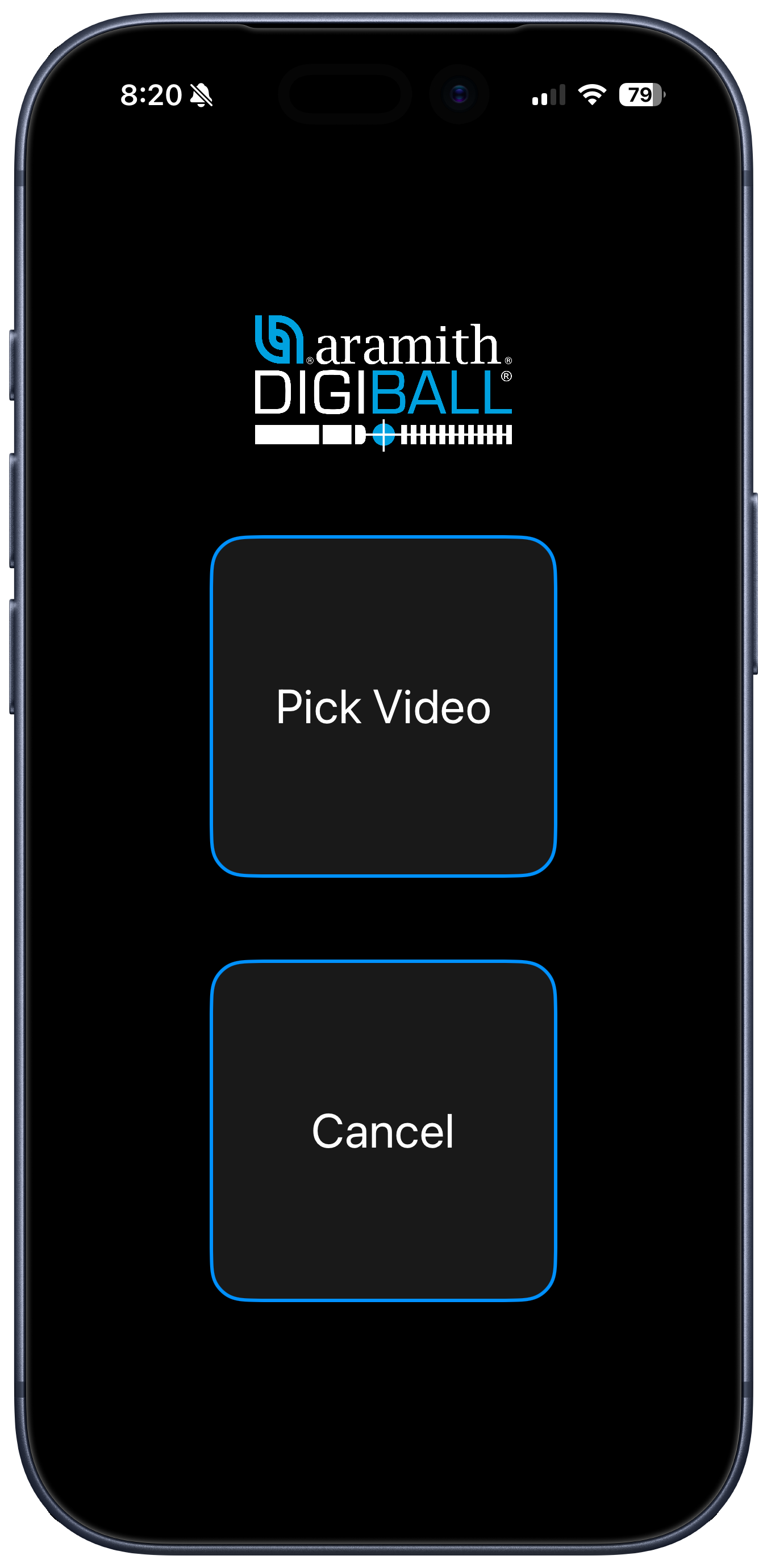
After you have finished recording your video, you need to burn the DigiBall overlay into your video. The overlay will appear in the video a few seconds before every shot. Press the Burn Overlay button in the main screen. Then click the Pick Video button, and navigate to your Photo Gallery to select the video that you've previously recorded.
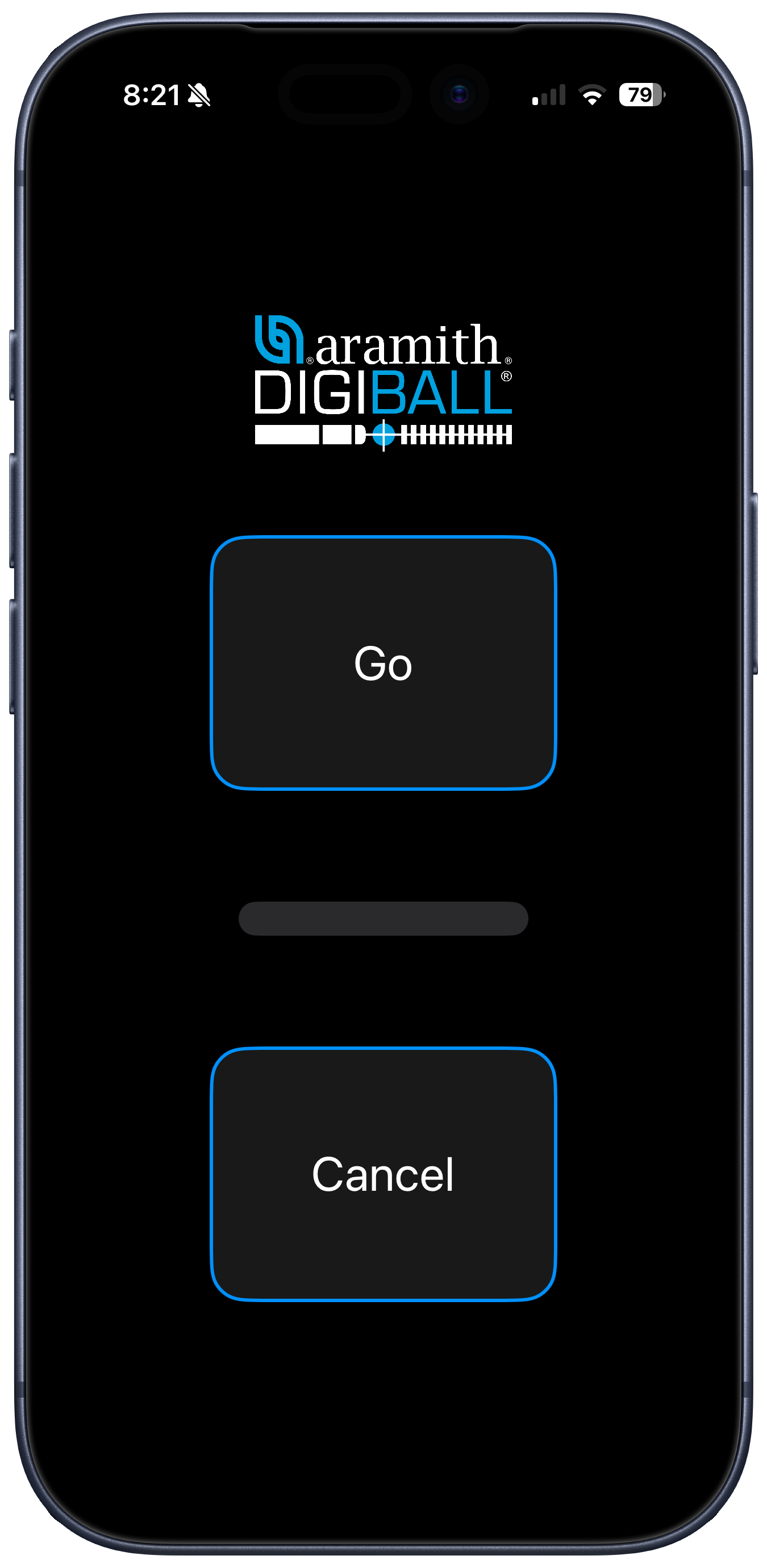
After selecting the video, press the Go button. A progress bar will update as the app is processing your video.
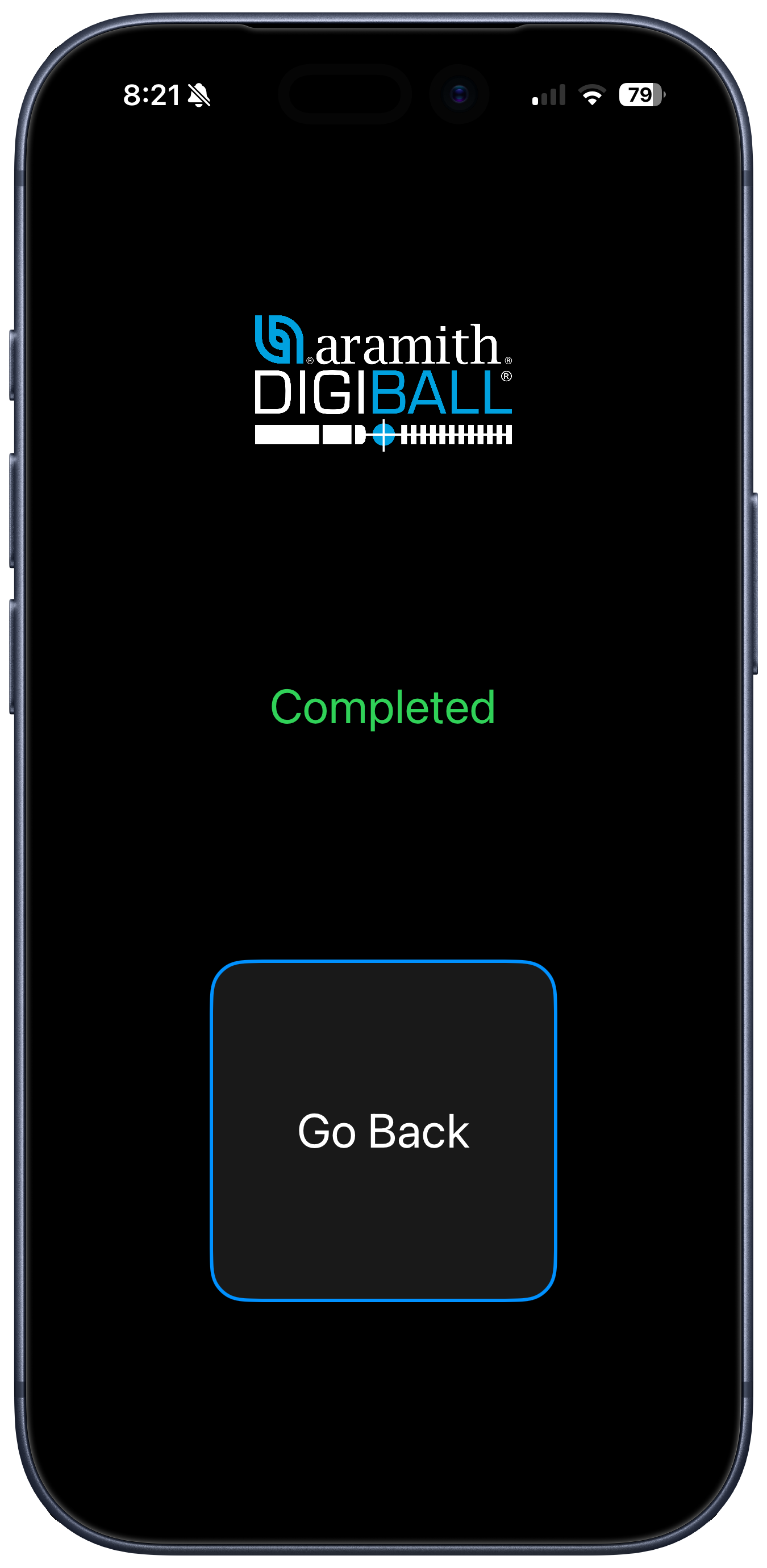
A new copy of your video will appear in your Photo Gallery complete with DigiBall overlays appearing a few seconds before every shot. You can return to the main menu to record another video.
Here is an example of a video created with DigiBallCam.
Here is another example.